Schema-less flow
Use Ivandt without predefining a schema - map headers to field types on-the-fly for instant data validation and transformation
The schema-less flow allows you to use Ivandt's powerful validation, transformation, and AI features without predefining a schema. Simply upload a file and map each column to a field type on-the-fly.
Overview
In the traditional schema-based flow, you define fields upfront with specific validation rules and transformers. The schema-less flow flips this around: you upload your data first, then quickly assign field types to each column. Each field type brings built-in validation, formatting, and transformation capabilities.
Think of it as dropping an Excel file into Microsoft Excel, but with superpowers: built-in validators, data cleaners, AI-powered transformers, and a slick UI for any data transformation you need.
When to use schema-less flow
The schema-less flow is perfect for:
- Quick data cleanup - Clean up messy spreadsheets without writing validation rules
- Format conversion - Convert between CSV, Excel, and JSON with validation and transformation
- Data migration - Migrate data between systems while ensuring quality
- Ad-hoc imports - When you don't know the data structure upfront
- One-time imports - When you don't need to save the schema for reuse
How it works
Upload your file
Drop your Excel, CSV, or JSON file into the importer. No schema required.
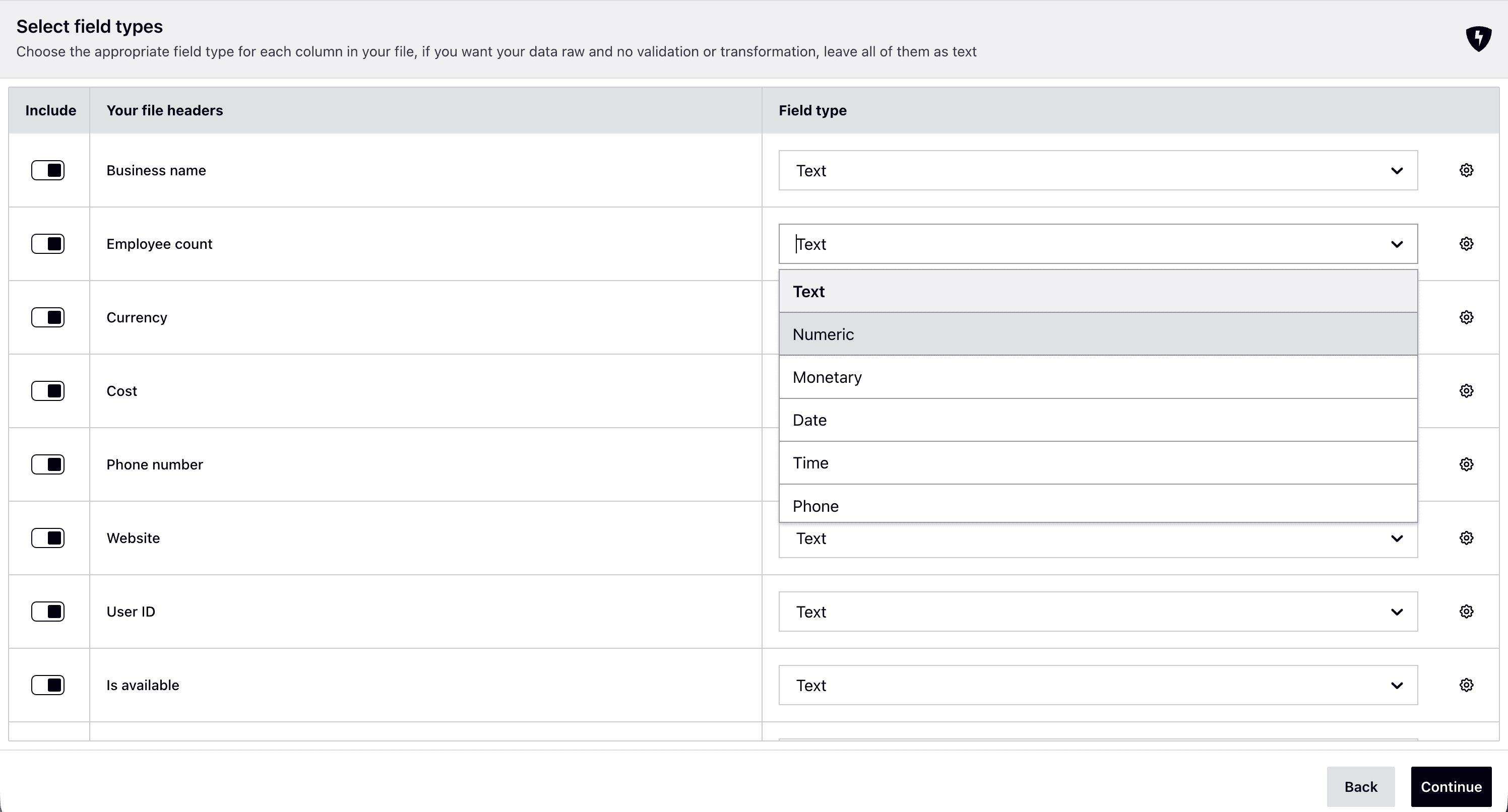
Map headers to field types
For each column in your file, select a field type (text, numeric, monetary, phone, date, time, password, or checkbox). Each field type brings built-in validation and formatting.
AI-powered field type prediction: The SDK uses AI to automatically predict the most appropriate field type for each column based on the header name. For example:
- "Cost", "Price", "Amount" → monetary
- "Phone", "Mobile", "Telephone" → phone
- "Active", "Enabled", "Is Valid" → checkbox
- "Birth Date", "Created At" → date
Fields predicted by AI are marked with an intelligence icon. You can always override any prediction manually.
Privacy note: Only column header names are sent to our AI service for prediction - your actual data never leaves your browser. Header names typically don't contain sensitive information.
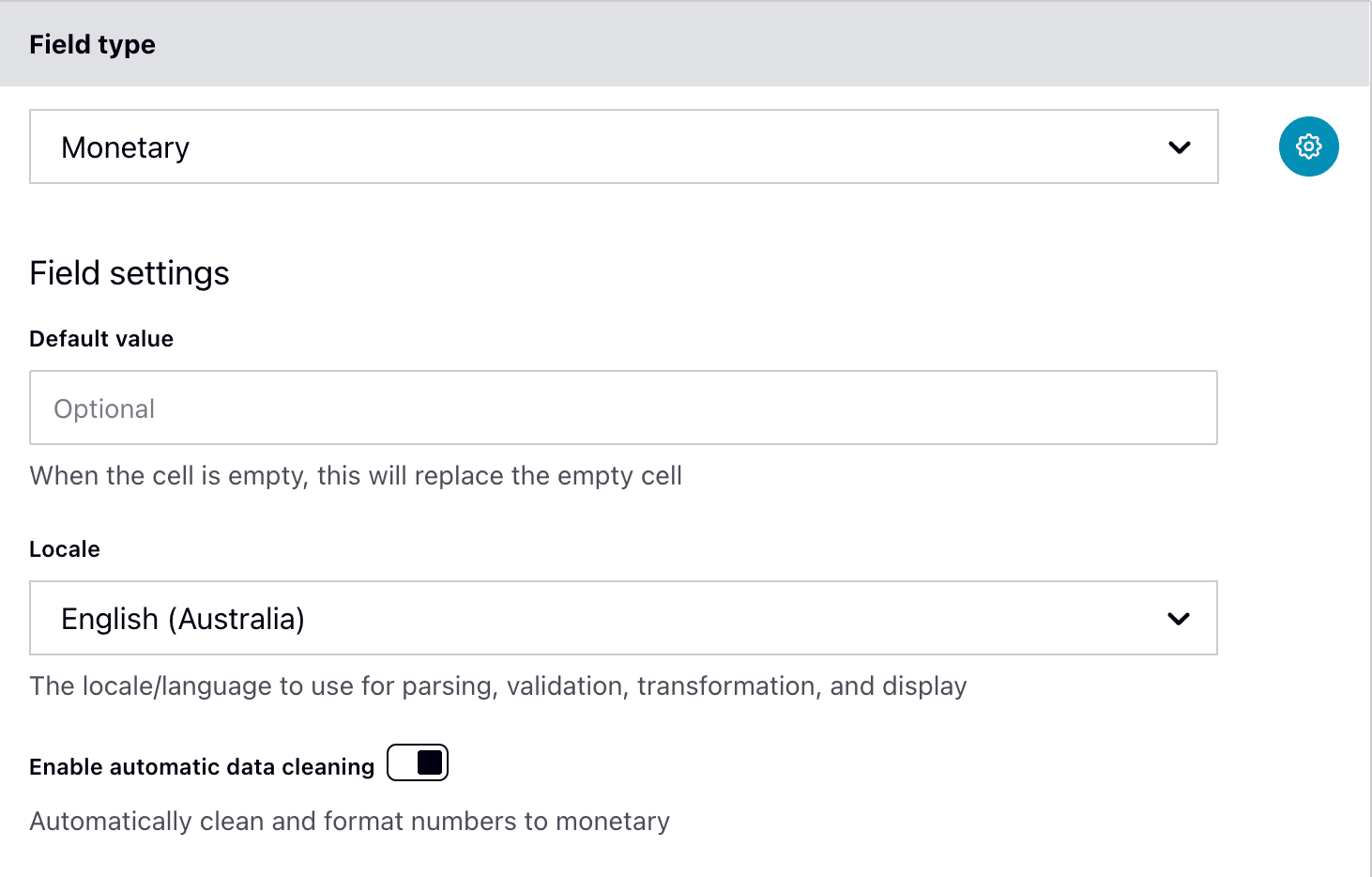
Optionally configure field settings like default values, locales, and auto-cleaning behavior.
Review and transform
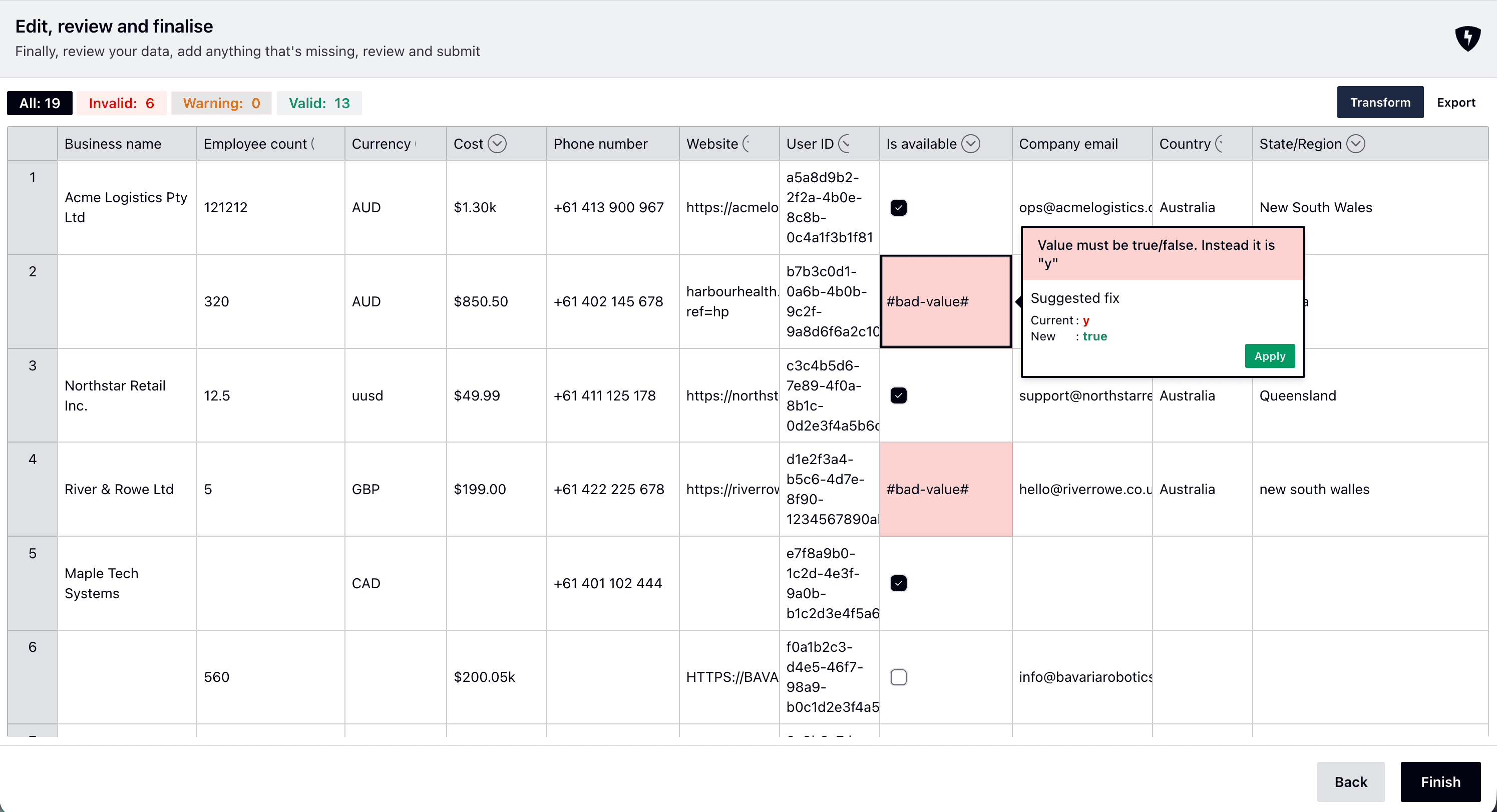
Your data appears in an Excel-like interface with:
- Automatic validation based on field types
- One-click fixes for common errors
- AI-powered transformers for any data manipulation
- Real-time error highlighting
Export
Export your cleaned, validated, and transformed data in your preferred format (Excel, CSV, or JSON).
Enabling schema-less flow
To enable the schema-less flow, configure your schema with an empty fields array and set the appropriate step configuration:
import type { IvtSchema } from '@ivandt/importer';

const schema: IvtSchema = {
  title: 'Data cleanup',
  publicKey: 'pk_live_xxx',
  sessionToken: 'session_xxx',
  fields: [], // Empty fields array enables schema-less flow
  stepsConfig: {
    mapFieldsStep: {
      title: 'Select field types',
      subTitle: 'Choose the appropriate field type for each column in your file',
      intelligentFieldMapping: true // Enable AI-powered field type prediction (default: true)
    }
  }
};
Configuration options:
title- Step title shown in the UIsubTitle- Step subtitle/descriptionintelligentFieldMapping- Enable AI-powered field type prediction (default:true)
When intelligentFieldMapping is enabled, the SDK analyzes column headers and suggests appropriate field types. This saves time and reduces manual mapping. You can disable this if you prefer to map all fields manually:
stepsConfig: {
  mapFieldsStep: {
    intelligentFieldMapping: false // Disable AI predictions
  }
}
When fields is empty, the importer automatically shows the "Map Fields" step instead of the "Map Headers" step.
Supported field types
The schema-less flow supports these field types:
| Field Type | Use Case | Auto-Clean Default |
|---|---|---|
| Text | Free-form text | None |
| Numeric | Numbers with locale support | Enabled |
| Monetary | Currency values with visual formatting | Enabled |
| Date | Date values with parsing | Enabled |
| Time | Time values | None |
| Phone | Phone numbers with country validation | Enabled |
| Checkbox | Boolean values | None |
| Password | Sensitive data (masked) | None |
Dropdown and Combine field types are not available in schema-less flow since they require predefined options or templates.
Field type settings
Each field type has configurable settings with sensible defaults. Most users won't need to change these, but they're available for fine-tuning.
Text field
The simplest field type with no special formatting or validation.
Settings:
- Default value - Value to use when cell is empty
Default behavior:
- No automatic cleaning or formatting
- Accepts any text input
Numeric field
Numbers with locale-aware parsing and formatting.
Settings:
- Default value - Number to use when cell is empty
- Locale - Language/region for number formatting (default:
English (Australia)) - Enable automatic data cleaning - Clean and format numbers (default: enabled)
Default behavior with auto-clean enabled:
- Strips currency symbols, letters, and extra spaces
- Handles locale-specific thousand separators and decimal points
- Rounds to 14 decimal places
- Example:
"1,234.56"→1234.56
Auto-clean configuration:
{
  decimalHandling: 'round',
  decimalPlaces: 14,
  stripCurrencySymbols: true,
  currencyPosition: 'both',
  stripOnlyTheseCurrencies: 'any'
}
Monetary field
Currency values with locale-aware formatting and validation. The key difference from numeric fields is the display configuration - monetary fields show currency symbols and formatting in the UI while storing the actual numeric value.
Settings:
- Default value - Amount to use when cell is empty
- Locale - Language/region for currency formatting (default:
English (Australia)) - Enable automatic data cleaning - Clean and format currency (default: enabled)
Default behavior with auto-clean enabled:
- Strips currency symbols from any position
- Handles locale-specific formatting
- Rounds to 2 decimal places
- Formats with thousand separators
- Example:
"$1,234.567"→1234.57
Display behavior:
- Shows currency symbol and formatting in cells (e.g.,
$1,234.57) - Actual stored data remains a number (
1234.57) - Display is purely visual - doesn't affect the underlying data
- Thousand separators and currency symbols added automatically
Auto-clean configuration:
{
  decimalHandling: 'round',
  decimalPlaces: 2,
  stripCurrencySymbols: true,
  currencyPosition: 'both',
  stripOnlyTheseCurrencies: 'any'
}
Display configuration:
{
  average: true,           // Show column average
  thousandSeparated: true, // Display with thousand separators
  spaceSeparated: false    // No space between currency and amount
}
Monetary vs Numeric: Both clean numbers the same way, but monetary fields add visual currency formatting in the UI. Use monetary when you want cells to display as currency (e.g., $1,234.56) while keeping the underlying data as a plain number.
Date field
Date values with intelligent parsing and formatting.
Settings:
- Default date - Date to use when cell is empty
- Format pattern - Output format (default:
MM/DD/YYYY)
Default behavior with auto-clean enabled:
- Parses dates in multiple formats automatically
- Handles various delimiters (
/,-,., space,|) - Supports ISO 8601 formats
- Validates against year range (1990 to current year by default)
Supported input formats:
DD/MM/YYYY,MM/DD/YYYY,YYYY/MM/DDD/M/YYYY,M/D/YYYY(single-digit day/month)YYYY-MM-DD(ISO 8601)YYYY-MM-DDTHH:mm:ss(ISO 8601 with time)- And many more variations with different delimiters
Auto-clean configuration:
{
  parsePatterns: [
    'DD/MM/YYYY', 'MM/DD/YYYY', 'YYYY/MM/DD',
    'D/M/YYYY', 'M/D/YYYY', 'YYYY/M/D',
    'YYYY-MM-DD', 'YYYY-MM-DDTHH:mm:ss',
    // ... and many more
  ],
  strictParsing: true
}
Time field
Time values with flexible parsing.
Settings:
- Default value - Time to use when cell is empty
Default behavior:
- Accepts various time formats
- No automatic cleaning by default
Phone field
Phone numbers with country-specific validation and formatting.
Settings:
- Default value - Phone number to use when cell is empty
- International code - Whether to require/format with international code (default:
true) - Countries to support - List of country codes to validate against (default:
['US', 'AU', 'CA']) - Enable automatic data cleaning - Clean and format phone numbers (default: enabled)
Default behavior with auto-clean enabled:
- Validates phone numbers for specified countries
- Formats according to country standards
- Handles international and national formats
- Strips invalid characters
- Example (AU):
"0413900967"→"+61 413 900 967"(if international code enabled)
Auto-clean configuration:
{
  countries: ['US', 'AU', 'CA'],
  withInternationalCode: true
}
Checkbox field
Boolean values with smart conversion.
Settings:
- Default value - Boolean to use when cell is empty (default:
false) - Enable automatic data cleaning - Automatically format common boolean alternatives to TRUE or FALSE (default: enabled)
Default behavior:
- Converts common boolean representations when auto-clean is enabled
- Accepts:
true,false,yes,no,1,0,✓,✔,✗,✘,on,off,y,n,t,f - Case-insensitive
- When auto-clean is disabled, only exact
trueorfalsevalues are accepted
Password field
Sensitive data with visual masking.
Settings:
- Default value - Value to use when cell is empty
Default behavior:
- Displays masked characters in the UI
- No automatic cleaning or validation
- Treats as plain text internally
AI-powered transformers
Beyond the built-in field type behaviors, you have access to all of Ivandt's AI-powered transformers:
- To uppercase - Convert text to UPPERCASE
- To lowercase - Convert text to lowercase
- Title case - Convert Text To Title Case
- Trim whitespace - Remove leading/trailing spaces
- Regex replace - Find and replace with patterns
- Truncate text - Limit text length
- Pad string - Add padding characters
- Strip HTML tags - Remove HTML markup
- Round numbers - Round to specific decimal places
- Scale numbers - Multiply/divide by factor
- Clamp range - Limit values to min/max
- Clean numbers - Remove non-numeric characters
- Normalize Z-score - Statistical normalization
- Format dates - Convert date formats
- Fill with timestamp - Add current timestamp
- Combine columns - Merge multiple columns with template
- Auto-increment IDs - Generate sequential IDs
- Generate UUID - Create unique identifiers
- Format phone numbers - Advanced phone formatting
- Normalize URLs - Clean and standardize URLs
- Map country names - Convert country name formats
See Transformers for complete documentation.
Use cases
Quick CSV cleanup
const schema: IvtSchema = {
  title: 'CSV cleanup',
  publicKey: 'pk_live_xxx',
  sessionToken: 'session_xxx',
  fields: [],
  stepsConfig: {
    reviewStep: {
      invalidDataBehaviour: 'remove_invalid_rows'
    }
  }
};
Upload a messy CSV, map columns to appropriate field types, let auto-clean handle formatting, and export a clean CSV.
Excel to JSON conversion
const schema: IvtSchema = {
  title: 'Excel to JSON',
  publicKey: 'pk_live_xxx',
  sessionToken: 'session_xxx',
  fields: [],
  eventHandlers: {
    onSubmit: async (data) => {
      // data is already clean JSON
      const json = JSON.stringify(data, null, 2);
      downloadFile(json, 'output.json');
    }
  }
};
Upload Excel, map field types for validation, export as clean JSON.
Data migration with validation
const schema: IvtSchema = {
  title: 'Customer migration',
  publicKey: 'pk_live_xxx',
  sessionToken: 'session_xxx',
  fields: [],
  stepsConfig: {
    reviewStep: {
      invalidDataBehaviour: 'block_submit'
    }
  },
  eventHandlers: {
    onSubmit: async (data) => {
      await fetch('/api/customers/migrate', {
        method: 'POST',
        body: JSON.stringify(data)
      });
    }
  }
};
Upload customer data, map phone/email/date fields for validation, ensure all data is valid before migration.
Comparison with schema-based flow
Advantages:
- No upfront schema definition required
- Quick ad-hoc data cleanup
- Perfect for one-time imports
- Flexible - works with any file structure
- Great for format conversion
Limitations:
- No dropdown fields (requires predefined options)
- No combine fields (requires template)
- Schema not saved for reuse
- Less control over validation rules
Advantages:
- Full control over validation rules
- Custom transformers per field
- Dropdown and combine fields available
- Schema saved for repeated imports
- Better for production workflows
Limitations:
- Requires upfront schema definition
- More setup time
- Less flexible for varying data structures
Best practices
Choose appropriate field types
Select field types that match your data:
- Use numeric for quantities, IDs, counts
- Use monetary for prices, costs, revenue
- Use phone for phone numbers (enables country validation)
- Use date for dates (enables smart parsing)
- Use text as fallback for mixed content
Leverage auto-clean defaults
Most field types have auto-clean enabled by default. This handles:
- Removing extra spaces and invalid characters
- Formatting numbers and currencies
- Parsing dates in multiple formats
- Cleaning phone numbers
You rarely need to disable auto-clean unless you want to preserve exact input.
Use transformers for complex cleanup
For operations beyond field type defaults:
- Use regex replace for pattern-based cleanup
- Use combine columns to merge data
- Use trim whitespace before other transformations
- Chain multiple transformers for complex workflows
Export in the right format
The importer can export to:
- Excel - Best for further manual editing
- CSV - Best for system imports
- JSON - Best for API consumption
Choose based on your downstream needs.
Limitations
The schema-less flow has some limitations compared to the full schema-based flow:
- No dropdown fields - Dropdowns require predefined options, which aren't available without a schema
- No combine fields - Combine fields need templates referencing other fields by key
- No custom validators - Only built-in field type validation is available
- No custom transformers - Only built-in transformers are available (but there are many!)
- Schema not saved - The field type mapping isn't saved for future imports
If you find yourself repeatedly using the same field type mappings, consider creating a proper schema instead. You'll get better performance and more features.